

Did you know that the fastest way to create a credential leak in Power Automate is to hardcode secrets in your flows?
If your cloud flow calls APIs, databases, or line-of-business systems, those credentials have to live somewhere. Storing them in plain text variables, desktop flow steps, or copied notes turns every export, run history, and ownership change into a security event waiting to happen.
Azure Key Vault gives you centralized secret storage, rotation, and auditability. When you combine it with connection references and environment variables inside solutions, you get a deployment model that is secure and ALM-friendly.
Why Key Vault matters for cloud and desktop flows
- Centralized secret management: Credentials and API keys live in one controlled location, not scattered across flows.
- Rotation without flow redesign: Update the secret in Key Vault and keep the same secret name/version strategy so flows continue working.
- Audit and control: Access to secrets is monitored and governed in Azure.
- Cleaner ALM: Solutions move between environments without embedding environment-specific credentials.
For desktop automation specifically, this is critical. Desktop flows often need sensitive values (system credentials, API tokens, file encryption keys). The secure pattern is to retrieve secrets in the cloud flow at runtime, then pass them into desktop flow inputs as late as possible.
Target architecture (what “good” looks like)
Azure side
- One Key Vault per environment (
kv-contoso-dev,kv-contoso-test,kv-contoso-prod) - Same logical secret names across environments (for example,
erp-api-key) - Least-privilege access for the identity behind your Power Automate Key Vault connection
Power Platform side
- One solution containing cloud flows, desktop flows, connection references, and environment variables
- Environment variables for vault-specific settings (vault name, secret name, endpoint if needed)
- Azure Key Vault connection reference reused by flows
- Cloud flow retrieves secret, then invokes desktop flow
ALM side
- Unmanaged solution in Dev
- Managed solution in Test and Prod
- Connection references remapped per environment during import
- Environment variable values set per environment
Step-by-step implementation
Step 1: Create Key Vaults per environment
In Azure, create separate vaults for Dev, Test, and Prod. Do not share one vault across all environments.
Use a naming standard such as:
kv-contoso-devkv-contoso-testkv-contoso-prod
Create secrets with the same logical names in each vault:
erp-api-keypad-runtime-passwordlegacy-system-client-secret
The values differ by environment, but the names stay consistent. This simplifies flow design and ALM mapping.
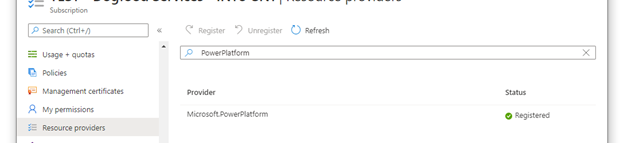 Register the Power Platform resource provider and baseline Key Vault setup in Azure.
Step 2: Grant least-privilege access to secrets
Give the identity used by the Power Automate Azure Key Vault connection only the permissions it needs (typically secret read operations).
Good practice:
- Scope access at vault level for the specific environment
- Avoid broad contributor/owner roles when only secret read is needed
- Use dedicated service principals/identities per environment when possible
This prevents Dev automations from accidentally reading Prod credentials.
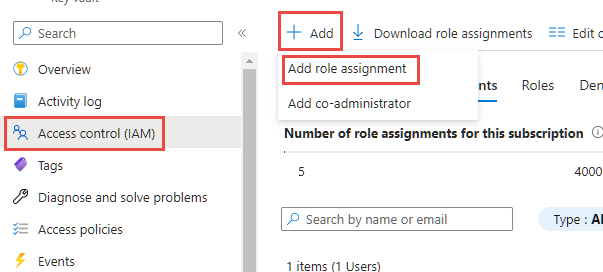 Grant least-privilege access with Key Vault Secrets User for users and service principals that need secret retrieval.
Step 3: Build a solution-first design in Power Platform
In your solution, create:
- Cloud flow(s)
- Desktop flow(s)
- Azure Key Vault connection reference
- Environment variables
Recommended environment variables:
KV_VaultNameKV_SecretName_ErpApiKeyKV_SecretName_PadPassword
Do not hardcode vault names or secret names in flow actions when ALM matters.
Step 4: Configure the Azure Key Vault connection reference
Inside the solution:
- Create a connection reference for Azure Key Vault.
- Bind it to the appropriate environment identity/account.
- Use this connection reference in all Key Vault actions.
Connection references are what make solution imports manageable. They let you rebind to environment-specific connections at deployment time.
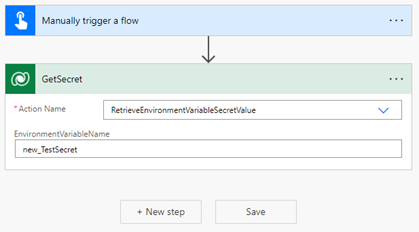 Use Dataverse secret retrieval in your cloud flow so values come from Key Vault at runtime, not from hardcoded steps.
Step 5: Build the cloud flow secret retrieval pattern
In your cloud flow:
- Trigger (manual/scheduled/event-driven).
- Read
KV_VaultNameand secret-name environment variables. - Use Azure Key Vault action (Get secret) with those values.
- Immediately pass the secret to where it is needed (HTTP action, connector call, or Run desktop flow input).
- Avoid persisting secret values in Dataverse rows, compose outputs, or logs.
Security hardening in the flow:
- Enable Secure Inputs and Secure Outputs on all actions touching secret content.
- Avoid unnecessary Compose/Append variable steps that duplicate sensitive data.
- Keep secret handling to the smallest possible action chain.
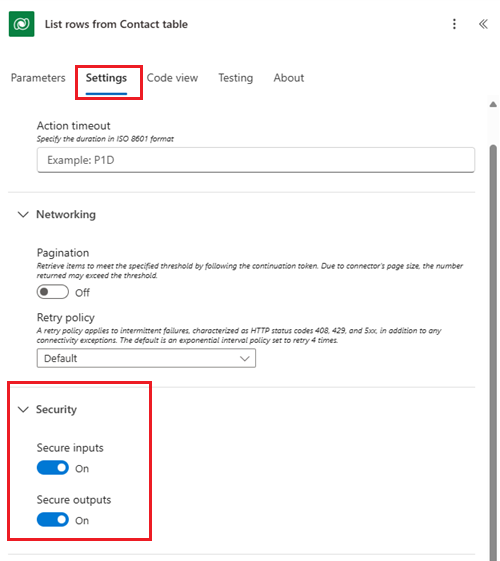 Turn on Secure Inputs and Secure Outputs for every action that handles secret values.
Step 6: Pass secrets to desktop flows safely
For Power Automate Desktop orchestration:
- Define desktop flow input variables for sensitive values.
- In the cloud flow, map Key Vault secret output to those inputs.
- In the desktop flow, consume the input only where required and avoid writing it to logs/files.
- Keep machine/runtime account permissions minimal and scoped to workload needs.
Important: The desktop flow should not become a second secret store. Treat inbound credentials as transient runtime values.
Tip: For desktop scenarios that must authenticate with Key Vault-backed credentials, use the official Power Automate for desktop setup guide: https://learn.microsoft.com/power-automate/desktop-flows/create-azurekeyvault-credential
Why this matters in ALM:
- It standardizes how machine/runtime credentials are created instead of relying on ad hoc local setup.
- It reduces deployment drift between Dev, Test, and Prod machines.
- It complements this pattern by keeping secret retrieval centralized while desktop credentials remain governed and repeatable.
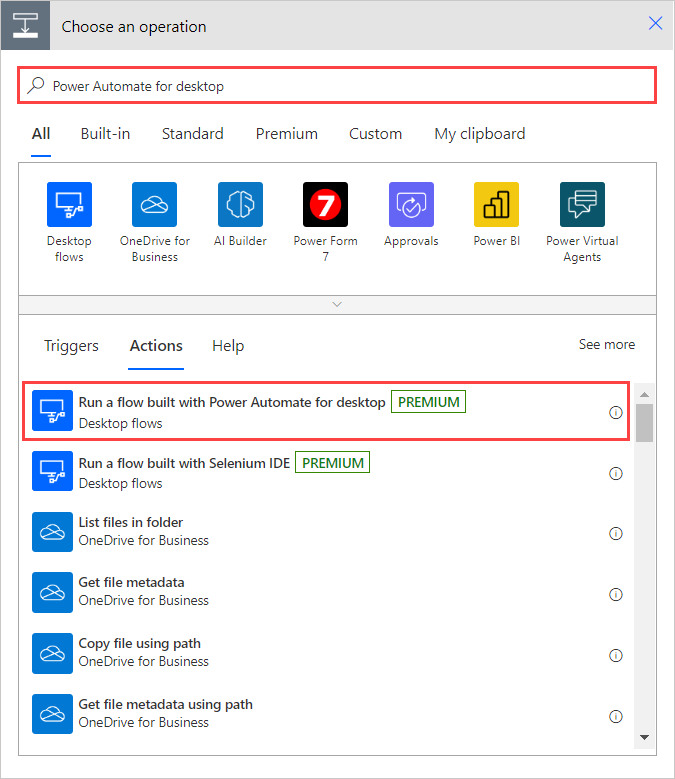 Add the desktop flow action in your cloud flow and map sensitive input variables from secure outputs.
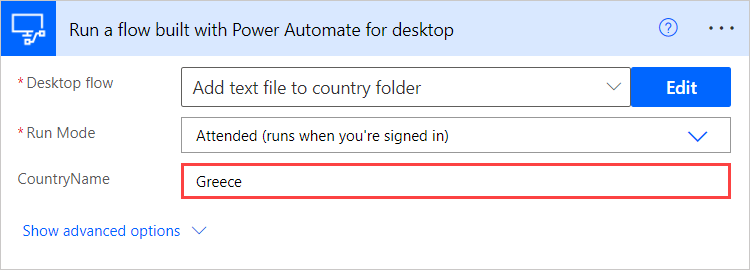 Validate input variable mapping so cloud-to-desktop secret handoff works consistently.
Step 7: Package for ALM with managed solutions
Use this deployment model:
- Build in Dev using an unmanaged solution.
- Export managed solution for Test/Prod.
- Import managed solution into target environment.
- During import, remap connection references to target environment connections.
- Set environment variable values (
KV_VaultName, secret names) for the target environment.
What changes per environment:
- Connection bindings
- Environment variable values
- Key Vault secret values in Azure
What should not change per environment:
- Flow logic
- Secret naming convention
- Input/output contract between cloud and desktop flows
Step 8: Validate deployment and runtime behavior
After each import:
- Run a controlled test flow execution.
- Verify secrets are resolved from the target environment vault.
- Confirm run history does not expose secret values.
- Confirm desktop flow executes successfully using injected runtime inputs.
- Validate rollback plan (previous solution version and prior secret version if needed).
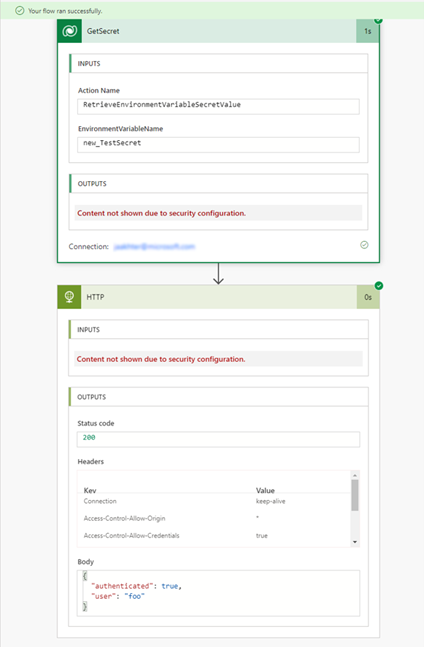 Run history validation confirms the flow works end-to-end after deployment and remapping.
Step 9: Operate with rotation and governance in mind
Adopt an operating model, not just a setup:
- Rotate secrets on a defined schedule.
- Keep secret names stable while rotating values/versions.
- Monitor failed runs for auth-related regressions after rotation.
- Document ownership: who rotates secrets, who updates connection bindings, who approves production deployments.
This is where ALM and security meet: secure changes with predictable releases.
Common mistakes to avoid
- Hardcoding credentials in cloud or desktop flows
- Using one Key Vault for all environments
- Not using connection references inside solutions
- Skipping secure inputs/outputs on sensitive actions
- Exporting/importing without a checklist for environment variable and connection remapping
How this should work in enterprise ALM solutions
A mature pattern looks like this:
- Dev: Makers build with environment variables and connection references, never raw credentials.
- Test: Managed solution import validates that security mapping and secret retrieval work before production.
- Prod: Deploy approvals include both solution artifacts and secret governance checks.
- Operations: Secret rotation is coordinated with release windows and monitored through run telemetry.
When this is in place, your flows become portable, auditable, and resilient. You reduce credential sprawl, cut deployment risk, and avoid rework every time environments or owners change.
That is exactly why integrating Azure Key Vault with cloud and desktop flows is not just a security best practice. It is an ALM best-practice.
💬 Comments & Suggestions
Share your thoughts, tips, or drop a useful link below.