

Did you know that you can pass a real file (PDF, Word, image) into a Copilot Studio agent directly from Power Automate or an agent flow?
The trick lives inside the Execute Agent action. Most people only fill in Body/message and miss the attachments array hidden under Advanced parameters. That array is what lets your agent actually receive the document and reason over it.
The pattern in one picture
The recipe is just two actions:
- Get file content (SharePoint) — fetch the bytes of the file.
- Execute Agent — call your Copilot Studio agent and attach the file.
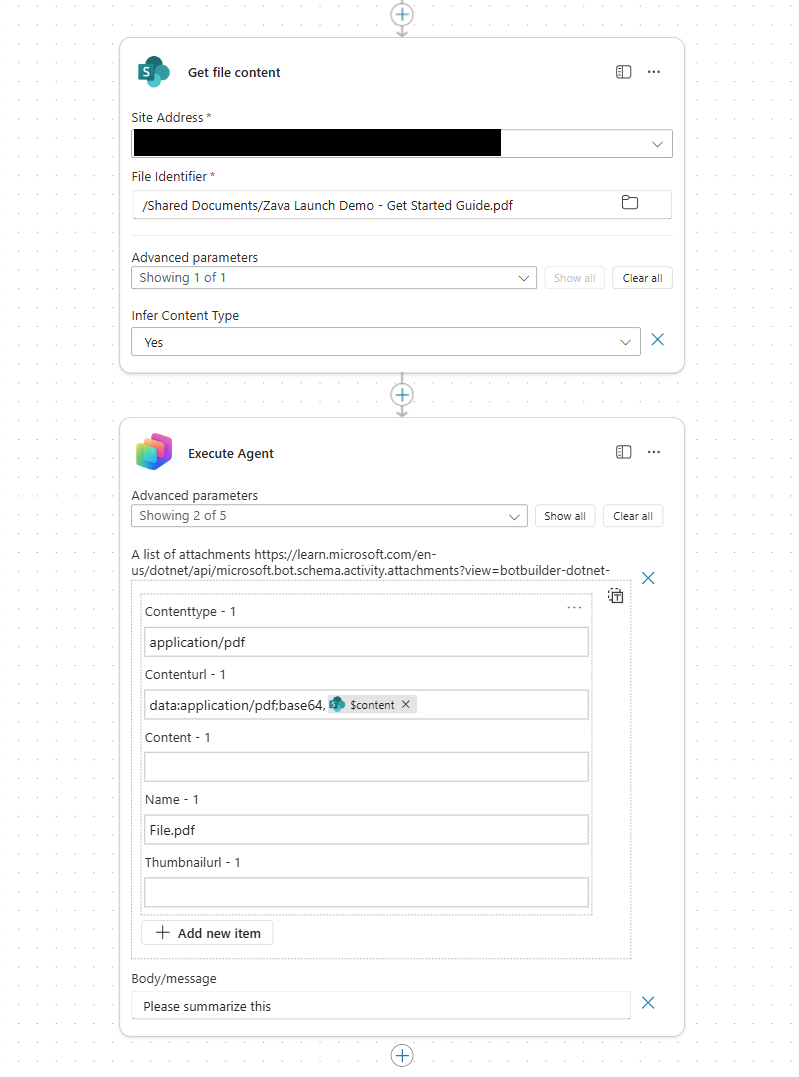
Here’s what those two actions look like in the designer, with the attachment array expanded inside Execute Agent:
Step 1 — Get file content from SharePoint
Add the SharePoint → Get file content action and configure:
- Site Address: the site that hosts the document.
- File Identifier: the path to the file, for example
/Shared Documents/Zava Launch Demo - Get Started Guide.pdf. - Infer Content Type:
Yes(so the connector returns the right MIME type).
This step gives you a $content token that holds the file as base64-encoded bytes — exactly what the agent needs.
Step 2 — Add the Execute Agent action
Add Execute Agent and pick the agent you want to call. Then expand Advanced parameters → Show all and turn on A list of attachments.
Add one item to the attachments array and fill it in like this:
| Field | Value |
|---|---|
| Contenttype | application/pdf (or the right MIME type for your file) |
| Contenturl | data:application/pdf;base64, + the $content from step 1 |
| Content | leave empty |
| Name | File.pdf (any friendly name with the right extension) |
| Thumbnailurl | leave empty |
Then set Body/message to whatever you want the agent to do with the file, for example:
Please summarize this
That’s it. When the flow runs, the agent receives the file as an attachment and can read, summarize, extract, classify, or route it.
Why the data URL matters
The Contenturl field is not a SharePoint link. It’s a data URL that inlines the file bytes into the request:
data:<mimetype>;base64,<base64-bytes>
Concretely, you build it as:
data:application/pdf;base64,@{outputs('Get_file_content')?['body']}
The $content placeholder shown in the designer is just a friendly handle for that body output. The agent runtime decodes the base64 and treats it as a real attachment, the same way it would if a user dragged the file into chat.
Common MIME types you’ll use
| File type | Contenttype |
|---|---|
application/pdf |
|
| Word (.docx) | application/vnd.openxmlformats-officedocument.wordprocessingml.document |
| Excel (.xlsx) | application/vnd.openxmlformats-officedocument.spreadsheetml.sheet |
| PowerPoint | application/vnd.openxmlformats-officedocument.presentationml.presentation |
| PNG image | image/png |
| JPEG image | image/jpeg |
| Plain text | text/plain |
Match the extension in Name to the MIME type — agents (and downstream model calls) use both signals to pick the right parser.
Where this pattern shines
- Document intake: a SharePoint library trigger fires, the flow pushes the new file to an agent that classifies, extracts fields, or routes for approval.
- Email attachments: replace step 1 with “Get attachment (V2)” from Outlook and forward the attachment straight to the agent.
- Form uploads: a Power Apps or Forms upload lands in OneDrive/SharePoint, then an agent flow summarizes it back to the user.
- Bulk processing: loop over a folder, send each file to the agent, and store the structured response in Dataverse or a list.
Things to watch out for
- Size limits: Execute Agent attachments inherit the agent’s file size limits. Very large PDFs may need to be split or pre-processed.
- Don’t double-encode:
Get file contentalready returns base64 in its body. Just prefix withdata:<mime>;base64,— don’t run it throughbase64()again. - One attachment per item: each file is one entry in the array. Use Add new item for multi-file calls instead of stuffing several files into one entry.
- Pick the right MIME type: if you set
application/pdfbut pass a Word file, the agent will struggle to parse it.
Why this is a big deal for agent flows
Agents become dramatically more useful when they can act on real documents instead of just text. Once you’ve wired this two-action pattern, you can chain it with classification, generative answers, Dataverse writes, or approvals — all from the same flow that picked the file up.
Two actions. One hidden Advanced parameter. A real document in your agent’s hands.
💬 Comments & Suggestions
Share your thoughts, tips, or drop a useful link below.