

Did you know you can now use variables inside SharePoint and website knowledge source URLs in Copilot Studio?
Until now, every SharePoint knowledge source in Copilot Studio required a hardcoded URL. If your agent needed to search different SharePoint sites depending on the user’s department, region, or role, you had to duplicate knowledge sources or build workarounds with multiple topics and conditional branching.
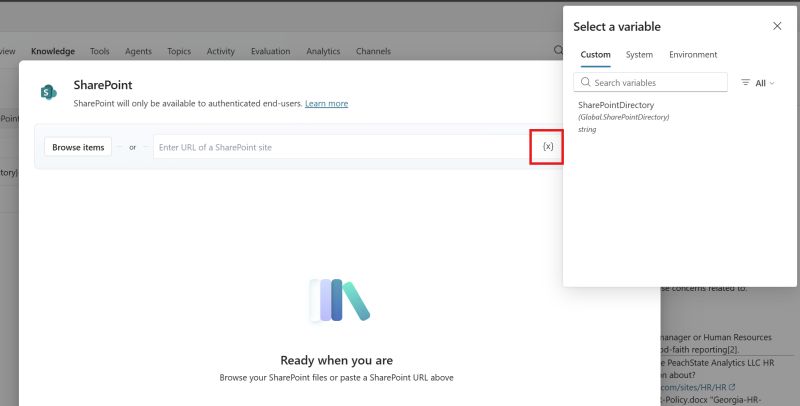
That just changed. Copilot Studio now lets you click the {x} button in the SharePoint (and website) URL field and insert a global variable — making the URL fully dynamic at runtime.
How it works
When you add or edit a SharePoint knowledge source, you’ll see the {x} icon next to the URL input. Clicking it opens the variable picker where you can select any global variable — custom, system, or environment. At runtime, the variable resolves to the actual URL before the knowledge search executes.
This means a single agent can point to entirely different SharePoint sites depending on context:
- A global helpdesk agent that searches the correct regional HR site based on the user’s location.
- A project assistant that reads from the SharePoint site matching the current project workspace.
- A multi-department bot where routing logic sets
Global.SharePointDirectorybefore generative answers kick in.
The practical pattern
- Create a global variable (e.g.
Global.SharePointDirectory) of type string. - Set the variable in a topic — either from user input, a Dataverse lookup, or conditional logic.
- Reference it in the SharePoint knowledge source URL using the
{x}picker. - The generative answers node uses the resolved URL when it runs.
This also works for website knowledge sources, so you can dynamically point to different public documentation sites using the same approach.
Why this matters
Before this feature, the workaround was to create separate knowledge sources for each site and selectively enable them — clunky and hard to maintain at scale. Now you set one variable and the agent adapts. It’s a cleaner, more scalable pattern that keeps your agent topology simple.
Source: Rémi Dyon on LinkedIn
💬 Comments & Suggestions
Share your thoughts, tips, or drop a useful link below.