

Did you know that Copilot Studio has a brand-new agent editor in preview that puts everything you need to build an agent on a single page — and you turn it on with one toggle?
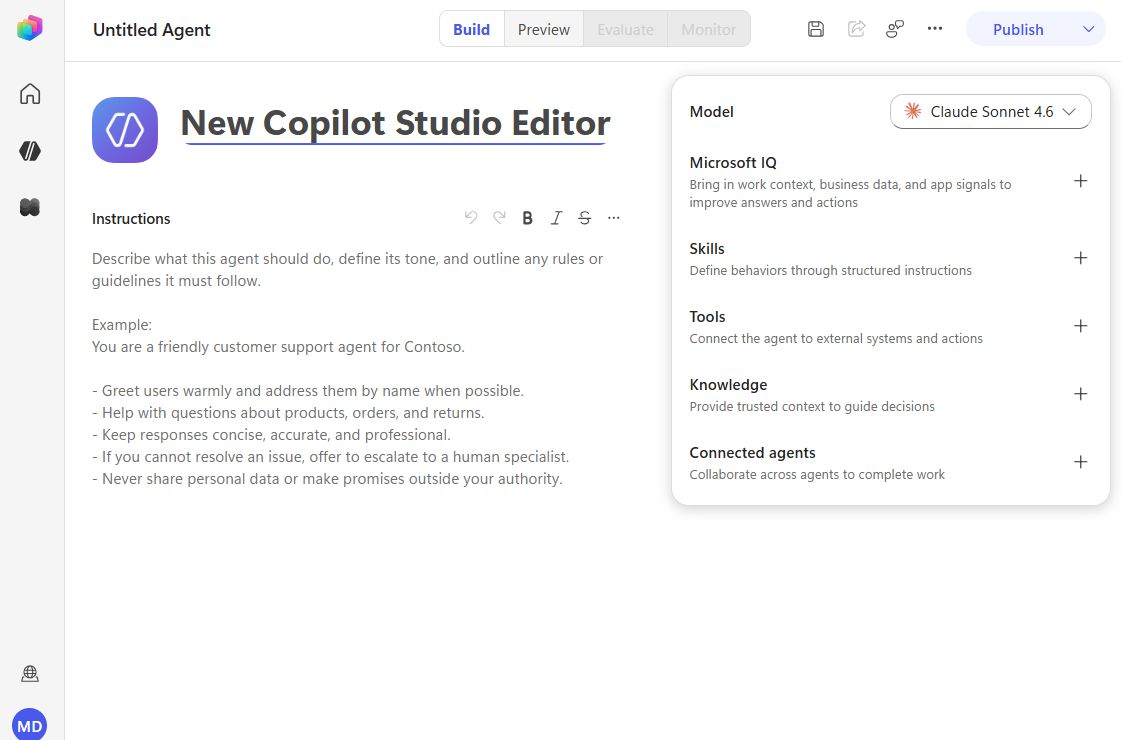 The new editor: rich-formatted instructions on the left, everything else stacked on the right
For a while now, building an agent in Copilot Studio meant bouncing between tabs — one for Tools, another for Knowledge, another for the rest. The new editor collapses all of that into a single page. And the best part: it doesn’t replace the classic experience, it sits right next to it.
Flip one toggle to try it
The new editor is gated behind a New experience toggle in the top-right of Copilot Studio. Turn it on and you land in the redesigned builder; turn it off and you’re back in the classic agent editor you already know. The two modes coexist, so you can experiment without committing your whole team to it.
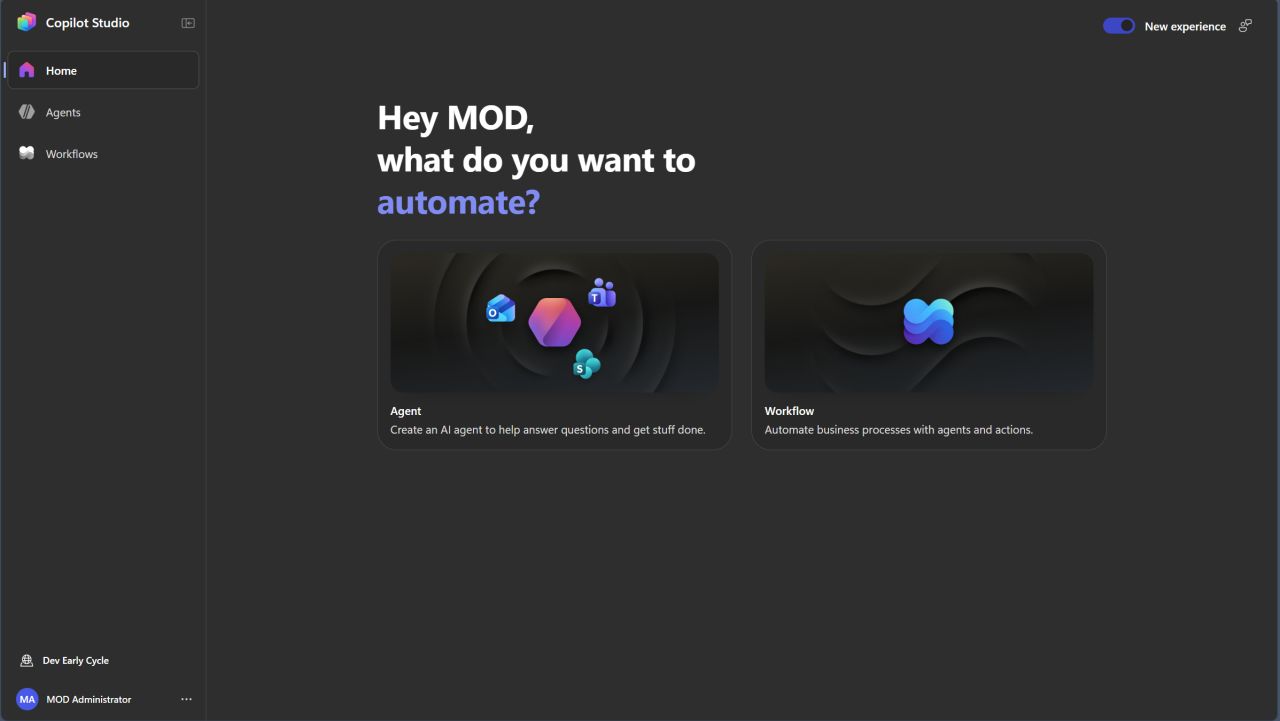 The New experience toggle lives in the top-right — flip it on or off any time
Everything on one page
The biggest change is layout. Instead of separate tabs, the new editor keeps your instructions front and center, with a single right-hand pane that stacks everything else:
- Model — pick the model that powers the agent (Claude Sonnet 4.6 was front and center in the preview).
- Microsoft IQ — the grounding layer that brings in your organizational context.
- Skills — attach SKILL.md files as reusable playbooks.
- Tools — add and configure actions inline.
- Knowledge — point the agent at your sources.
- Connected agents — call other agents.
You stop hunting through tabs and start seeing your whole agent at a glance.
Instructions you can actually format
The instructions field now supports rich formatting — bold, numbered lists, code blocks, and links. This isn’t just cosmetic. Well-structured instructions are easier for you to maintain, and they help the model parse the rules and guidelines more reliably. Bold the hard constraints, number the steps it should follow in order, and drop a code block in when you need an exact format. Both the human and the AI benefit.
Skills: a new primitive that runs Python
The headline addition is Skills — a new primitive that replaces the old topics-and-child-agents model with something far more composable. You attach SKILL.md files straight into the agent, including skills you authored elsewhere — in Codex, Claude Code, or another AI tool — and you can add more than one. There’s also a search so you can find skills to wire in.
The kicker: Skills can execute real Python, right inside your agent. Each agent runs in its own container, so file generation and analysis just work — produce a report, run a data transformation, hand the user back a polished artifact — without bolting on a flow to do it. It’s a clean way to give your agent focused, reusable playbooks instead of cramming everything into the instructions block.
It’s a rebuilt runtime, not a reskin
This is the part that’s easy to miss: the new editor isn’t a coat of paint over the old engine. The orchestration and authoring layers were rebuilt on a proper agentic harness — a loop that calls the model, dispatches tool calls (including MCP servers), feeds the results back, and keeps going until the task is done. If you used Enhanced Task Completion in the classic UI, this is the same backend, now with a home that matches its capabilities.
Knowledge, memory, and guardrails are first-class in this runtime — native to how it executes, not workarounds layered on top. Combined with Python Skills and containerized execution, it’s a meaningfully different product than what existed six months ago.
Configure tools inline
Tools are now set up on the same page, not in a separate detour. When you add a tool, you see all of its inputs laid out — including which ones are required — and configure inputs and outputs right there. Fewer clicks, less context switching.
Preview exactly what the end user sees
The new editor adds an End user preview toggle that mirrors precisely what the person chatting with your agent will experience. It’s a small thing that saves a lot of “wait, why does it look different for them?” moments before you publish. The agent list, meanwhile, now shows Status (Draft / Published) and Channel columns so you can see at a glance where each agent stands. Evaluate and Monitor work the same as before.
A balanced take
It’s a genuinely nicer way to build — but it’s worth knowing the trade-offs people are flagging:
- Preview only, Early Release required. You can’t just flip a switch in any tenant — you need an Early Release environment to access the new editor. Keep it off production.
- Classic agents aren’t going away. Topics, broader channel deployment, and full analytics still live on the mainline orchestrator. Pick the right tool: classic for those scenarios, the new editor for new builds that want true agentic behavior.
- The activity map isn’t in the test panel. If you relied on watching the orchestration path while testing, that view isn’t surfaced in the new editor’s test experience yet.
- Single-page vs. tabs is a preference. Some builders liked the old tabbed layout for keeping a complex agent organized. Everything-on-one-page is faster for small and medium agents, but a very large agent can feel dense.
Why it matters
This is arguably the moment Copilot Studio stops being “low-code with an LLM bolted on” and starts being a proper agentic platform. Skills + Python + MCP + a containerized runtime add up to something genuinely new. The toggle means there’s low risk in trying it in an Early Release environment — build something, and flip back to classic if you need topics or broader channels. Given how quickly it’s moving through preview, getting familiar now means you won’t be caught off guard when it becomes the default.
#CopilotStudio #AgentBuilder #PowerPlatform #MCP #AIAgents
💬 Comments & Suggestions
Share your thoughts, tips, or drop a useful link below.