

This guide grew out of a customer case involving an integration between Copilot Studio and Azure Databricks. Connecting an agent to Databricks Genie involves two separate choices. One is the interface: MCP or REST. The other is the analytical behavior in Databricks: Chat mode or Agent mode. Choosing a protocol does not, by itself, select the analytical mode. Together, the choices also decide which layer does the multi-step reasoning, Genie or the Copilot Studio agent.
The comparison covers the Genie Agent MCP server, the Genie One MCP server, the Chat mode REST API and the Agent mode REST API. After the two modes and the question of where the reasoning should live, the guide describes an Agent mode design that uses workflows, a custom connector and a custom script, then walks through setting it up with the supplied files.
Integration options compared
The four options differ in scope, in how the exchange is handled and in who owns it. They are not interchangeable.
| Option | Scope | Capability | Responsibility |
|---|---|---|---|
| Genie Agent MCP | Questions scoped to one curated Genie Agent | Managed tool integration over MCP. Read-only. It does not pass conversation history to the Genie API. | You configure the connection, the tool and the agent instructions. The Azure Databricks page marks it Public Preview and requires a workspace administrator to enable Managed MCP Servers. |
| Genie One MCP | Conversational analytics across the workspace | A separate Databricks service, system.ai.genie_one_mcp, with its own tools for asking, polling, fetching full query results and canceling. |
Own tools, permissions and lifecycle. The older Beta endpoint is deprecated. |
| Chat mode REST API | Stateful questions over structured data in one Genie Agent | JSON requests and responses. Uses conversation_id and message_id. Follow-up questions reuse the conversation. |
You call the operations, read message state and retrieve results. |
| Agent mode REST API | Multi-step analysis in one Genie Agent, ending in a report | Dedicated API. SSE at startup, then JSON state and result retrieval. Uses conversation_id and response_id. |
You handle start, state, pagination and cancellation. The API reference lists a feature-disabled error for workspaces that are not enrolled. |
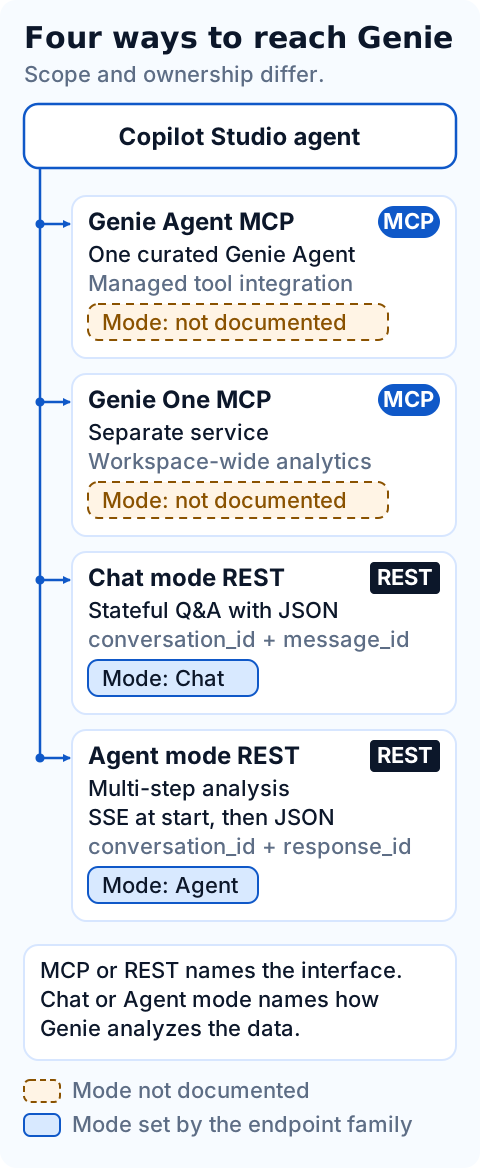
The Genie One MCP server and the Genie Agent MCP server are separate services. They use different endpoints and OAuth scopes. Genie One runs through Unity Gateway, where callers need EXECUTE on the service. Calls to the Genie Agent endpoint skip Unity Gateway, so its grants and policies do not apply. Access depends on permissions on the Genie Agent and its data.
The interface does not tell you the mode. The Genie Agent MCP page describes a tool that queries one curated Genie Agent. It does not say the tool is limited to Chat mode, and it does not document a way to select Agent mode. Neither assumption is established, so test the behavior you need before designing around it. The REST APIs are different: the Databricks conversation reference assigns message endpoints to Chat mode and response and item endpoints to Agent mode.
Chat mode and Agent mode
Genie Agents answer in Chat mode or in Agent mode. The Genie Agents concepts page describes each one by the kind of question it suits and by what it gives up.
| Aspect | Chat mode | Agent mode |
|---|---|---|
| Suited to | Questions about structured data that Genie can answer with a single SQL query. | Complex, exploratory questions, such as investigating why a metric changed. |
| How it answers | Resolves the question with one SQL query. | Creates and refines a research plan, runs several SQL queries, learns from each result and iterates until it has enough evidence. |
| What comes back | The generated SQL, the query results and visualizations. | A report with citations, visualizations and supporting tables. |
| Sources | Structured data only. | Structured data, plus unstructured files in Unity Catalog volumes and external tools connected through Databricks-provided MCP connectors when an author attaches them. |
| Limits | It cannot analyze unstructured files, use MCP connectors or break a complex question into several steps. | Availability depends on the region and on the workspace being enrolled. |
A question such as "What were total orders last month?" fits Chat mode. "Why did order volume change, and which segments explain it?" is the kind of exploratory question Agent mode is designed for. Both are illustrative questions, not results from any dataset. A report that explains a change presents evidence for review. It does not establish cause.
Copilot Studio generative orchestration is a different layer. The orchestrator chooses among tools, topics, knowledge sources and other agents using their names and descriptions (Orchestrate agent behavior with generative AI). Agent mode is how Genie analyzes data once a tool has called it. Enabling orchestration in Copilot Studio does not select Agent mode in Databricks.
Where the reasoning should live
Agent mode already reasons. It creates and refines a research plan, runs several SQL queries and adjusts its approach to what each result shows. A Copilot Studio agent can reason too, depending on its model. The Copilot Studio model page, which describes the standard harness, tags each model as General, Auto or Deep. It describes Deep as "Optimized for deliberate, multistep reasoning and tool-supported workflows", and it tags the Claude Opus models as Deep and Claude Sonnet 4.6 as General.
If a Deep model sits in front of Agent mode, one question gets two planners, and the second repeats work that Agent mode already does. The pages do not measure the cost of that duplication, so treat it as a design judgment. It is a reason to give the multi-step reasoning to one layer only, which leaves two designs.
| Design | Reasoning happens in | Copilot Studio agent | Genie |
|---|---|---|---|
| Genie reasons | Genie, in Agent mode | A General model. Its instructions cover how to start, track and present the analysis. | Agent mode, as in the design described later in this guide. |
| The agent reasons | The Copilot Studio agent | The model Databricks recommends, with instructions and skills that carry the analytical method. | Chat mode, one question at a time. |
In the second design the agent does what Chat mode does not do. It splits a business question into questions that one SQL query can answer, reads each result and decides what to ask next. The Databricks setup page recommends a model for this integration, and on 4 November 2026 it names Sonnet 4.5. The Copilot Studio model page lists Claude Sonnet 4.6, so check which Sonnet version your environment offers. The Databricks page says to use the instructions to "describe your agent's capabilities and how it should behave", and that is where the analytical method goes. Skills can package it in the GitHub Copilot harness. They are "portable packages of instructions, scripts, and resources", and the runtime activates one when a request matches its purpose. The standard harness has no skills (harness overview), so there the instructions carry the whole method.
This design relies on two points. The first is documented. The Genie Agent MCP page says the server "doesn't pass conversation history to the Genie API", so each call reaches Genie without the earlier questions, and only the Copilot Studio agent can connect one answer to the next. The second is not documented. The pages do not say which mode the MCP tool uses, and the design assumes it answers like Chat mode, with one question and one result. Confirm that in a test before building on it.
The designs suit different questions. Chat mode cannot analyze unstructured files, use MCP connectors or break a question into steps, and Agent mode can do all three. If the questions need those capabilities, keep the reasoning in Agent mode and keep the Copilot Studio agent simple. If one query answers most questions, the second design avoids the duplication and uses the model Databricks recommends.
Connecting from Copilot Studio with MCP or Chat mode REST
The managed MCP route uses a tool that the agent calls like any other. In Azure Databricks, the Managed MCP Servers preview must be enabled in the workspace first. The Databricks setup page (Azure Databricks edition) describes these steps:
- Create the Databricks connection on Microsoft Power Platform.
- Add the Databricks Genie tool to the agent from the Model Context Protocol tools, and select that connection.
- Select the intended Genie Agent by ID or from the list. Give the Genie Agent a clear name and description in Databricks.
- Name the tool descriptively, because the orchestrator uses its name and description to decide when to call it, and describe the agent's behavior in its instructions. Databricks recommends telling the agent to keep polling until it receives a response, so the integration does not keep repeating "still processing" messages.
- Turn on AI orchestration for the agent, as the page instructs, then test a question through to a conclusive result.
The Chat mode REST route calls the API directly, and the Genie Agents API guide describes it as stateful, with follow-up questions and history. A custom connector, or any other component that can call the Genie API, handles these steps:
- Start a conversation by sending the first question. The response includes a
conversation_idand amessage_id. - Retain both identifiers.
- Read the message state until it reaches a terminal status such as
COMPLETED,FAILEDorCANCELLED, then retrieve the query result. - Reuse the conversation for follow-up questions. The response uses all previously created messages in that conversation.
Keep the families apart. Chat mode paths start with spaces/{space_id}, use a message_id and report upper-case status values such as COMPLETED. Agent mode paths start with agents/{agent_id}, use a response_id and report in_progress, completed or failed. The agent_id is the same value as the space ID. The Genie One MCP tools report in_progress, completed, incomplete or failed. Use each family only for its own conversations.
Agent mode architecture
The Agent mode design has five components. Each one has a single job.
| Component | Responsibility |
|---|---|
| Copilot Studio agent | Understands the request, calls the tools, retains the analysis context and presents the retrieved result. |
| Workflows | Coordinate the operations and handle analysis state, report pages, errors and cancellation. |
| Custom connector | Defines the API operations, parameters and response schemas, and uses the configured secure connection. |
| Custom script | Adapts the API exchange into structured information the workflow can use for subsequent calls. |
| Databricks Genie | Performs the analysis and produces the report. |
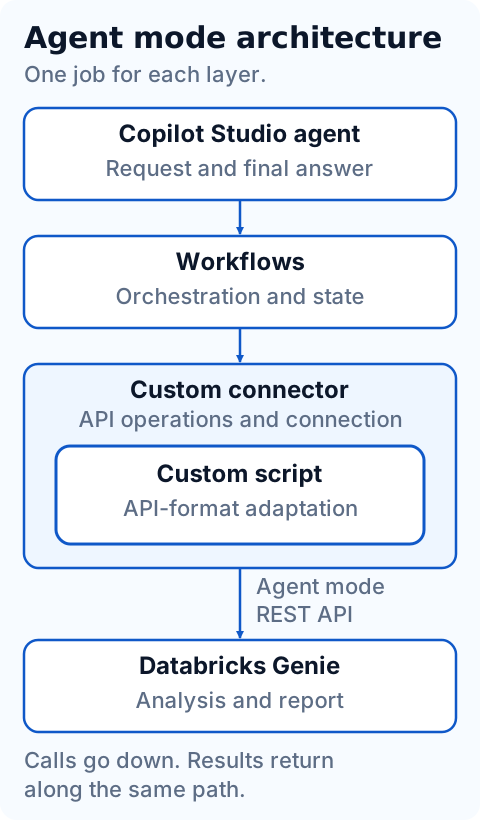
The agent calls a workflow as a tool. Copilot Studio documents that a workflow with the "When an agent calls the workflow" trigger can be added to an agent as a tool, and that workflow actions can use custom connectors (Workflows overview). The workflow calls operations on the custom connector, which describes the Databricks Agent mode API: its operations, parameters and response schemas, and the secure connection it uses.
The custom script is code inside that connector. Microsoft documents custom code as a way to transform request and response payloads beyond what policy templates can do, and a connector can have one script (custom code).
This design deploys no external Azure Function, queue or database. The adaptation logic sits inside the custom connector. Other designs can choose an external adapter, and that decision depends on the transport and the operational requirements of the integration.
What the custom script does
Server-Sent Events (SSE) is a format in which a server keeps one HTTP response open and sends events over it as they happen. The Agent mode start request uses it. Databricks streams the events for the new response, and the first event, response.created, carries the identifiers of the response and its conversation. A workflow needs structured values it can pass into later operations. The script bridges that boundary.
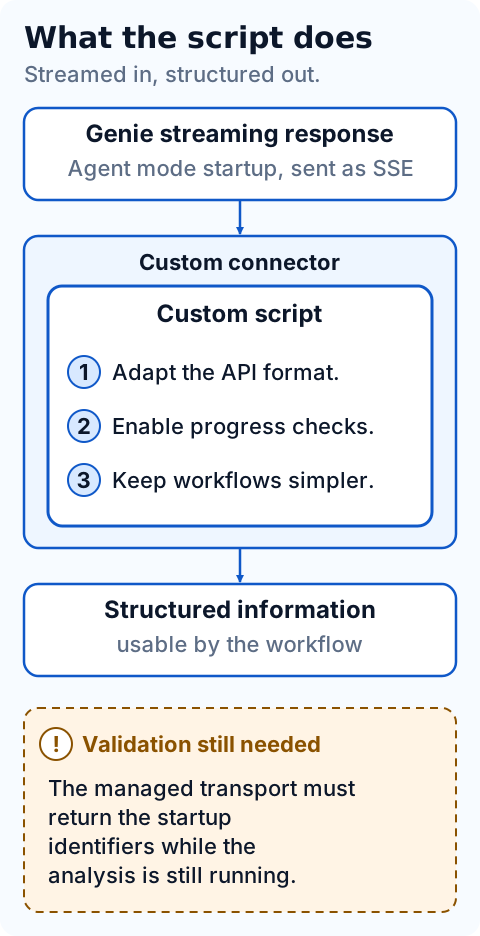
The script has three responsibilities:
- Adapt the API format. It reshapes the streamed startup exchange into a structured response that matches the connector's schema, so the workflow reads named values instead of an event stream.
- Enable progress checks. The structured response carries the identifiers needed to ask for state later, so the workflow can check progress using the same conversation and response without starting another analysis.
- Keep workflows simpler. Every workflow that starts an analysis receives the same structured result, and none of them needs its own handling of the stream format.
Keeping this responsibility in the connector gives it one owner and one place to change, next to the API definition it serves. If each workflow handled the stream itself, the same logic would be repeated and could drift apart.
Databricks still performs the analysis. The script does not interpret data, choose queries or write the report, so it is not another analytical agent.
Agent mode analysis lifecycle
The workflow follows five steps: start the analysis, retain the identifiers, consult state, retrieve the report pages and present the complete result. The connector exposes three operations for this. They are operation names in this design's custom connector, not native Copilot Studio feature names.
| Connector operation | Databricks Agent mode call | Role in the workflow |
|---|---|---|
StartAgentMode |
Create a response: sends the question and streams the response over SSE. | Receives the conversation and response identifiers through the script's structured result. |
GetAgentModeItems |
List conversation items: returns JSON items with cursor pagination. | Reads the status and items, and follows last_id while has_more is true. |
CancelAgentModeResponse |
Cancel a response: requests that an in-flight response stop. | Sends the request and reads the terminal state it returns. |
These safeguards apply throughout the lifecycle:
- Keep the same identifiers when checking progress. Use the
conversation_idandresponse_idfrom the start operation for state checks, page retrieval and cancellation. Thestatusin an items response describes the latest response in the conversation, and Databricks returns a conflict error when a response is already being generated for that conversation. Do not start another response in the same conversation while tracking the current one. - Do not automatically start again when the start outcome is unknown. A start without a conversation identifier creates a new conversation, so a blind retry can launch a duplicate analysis while the original may still be running. Find out what happened to the original request first.
- Treat
completedas the end of the analysis, not as proof that the workflow holds the whole report. The status says the response finished. The items come in pages, andhas_moresays whether more follow. - Follow the pagination cursor while more pages exist. Pass each page's
last_idas theaftervalue of the next request, and treat the report as complete only when a page returnshas_moreas false. - Do not advance the final-report cursor while items are still changing. Items can be in progress and can be updated while the analysis runs, as the streaming events show. Use reads during processing to show progress, and start the final-report cursor once the response reaches a terminal state.
- Do not present reasoning as the report. The items include reasoning and SQL call records as well as the assistant's message. The report is the assistant message with its text and tables.
- Treat cancellation as requested until the state confirms it. Databricks documents that a canceled response stops at the next agent boundary and that its terminal state is returned. Report cancellation as confirmed only when that state says so.
- Closing the SSE stream does not cancel an accepted analysis. Databricks documents that disconnecting the stream does not cancel the response, so a deliberate cancellation request is required.
These rules follow from one property: the analysis continues after the start call returns. Starting, checking and retrieving are therefore separate operations that share identifiers, and the workflow holds that state.
Configure the custom connector
The connector uses two files from Downloads: apiDefinition.swagger.json, an OpenAPI 2.0 definition of the three operations, and Script.csx, the script described above. The definition describes itself as an experimental proof of concept that requires the script and is not a certified connector.
- Download apiDefinition.swagger.json and Script.csx.
- In
apiDefinition.swagger.json, replace the placeholder hostadb-REPLACE.azuredatabricks.netwith your own Databricks workspace host, withouthttps://. The script accepts only HTTPS workspace hosts on the standard port, and it rejects any host that still containsREPLACE. - In Power Apps or Power Automate, open the solution you want to use in the environment that hosts the agent. Select New > Automation > Custom connector > Import an OpenAPI file, name the connector, select the definition and select Continue. Then select Create connector and check the host and base URL on the General page (Create a custom connector from an OpenAPI definition).
- On the Security page, check the authentication. The definition declares one API key security definition,
DatabricksBearer, that sends the key in theAuthorizationheader. This is not OAuth, so Databricks does not receive the signed-in user's identity. It authorizes each call with the credential that the connection holds. The definition adds that production OAuth requires separate validation. - On the Code step, upload
Script.csxand switch Code Disabled to Code Enabled. The wizard accepts.csand.csxfiles, and a connector can have only one script (code step, custom code). - Select the operations the code applies to:
StartAgentMode,GetAgentModeItemsandCancelAgentModeResponse. Selecting none applies the code to all operations. ForStartAgentMode, the script starts the analysis and returns the startup identifiers. For the other two, it checks the HTTP method, the Databricks path and the workspace host, then forwards the request through the platform's managed transport. - Select Update connector. On the Test page, select New connection and enter the complete credential: the word
Bearer, one space and your Databricks token (test step). The credential belongs in the connection. Keep it out of agent instructions, workflow inputs and the downloadable files. - On the Definition page, check that the three operations exist and that their fields match the table below.
| Operation | Purpose | Required inputs | Relevant outputs |
|---|---|---|---|
StartAgentMode | Starts a new Agent mode analysis in STANDARD execution mode. Every call creates a new conversation. | agent_id (path), question (body) | conversation_id, response_id and status, which is in_progress when the start is acknowledged. A failure returns an error object with code, message and correlation_id. |
GetAgentModeItems | Reads the latest response state and one page of conversation items. | agent_id, conversation_id | status, data (items with type, role, status and content), first_id, last_id and has_more. |
CancelAgentModeResponse | Requests cancellation of a response. | agent_id, conversation_id, response_id | The Databricks cancellation response. Read the conversation state afterwards. |
Optional inputs are enable_viz on StartAgentMode (default false, and the connector does not render visualizations), and limit (default 20), after and order on GetAgentModeItems.
Set up the workflows
The agent uses two workflows. Genie - Start Conversation starts an analysis, and Genie - Read Conversation consults it. Both begin with the "When an agent calls the workflow" trigger and end with "Respond to the agent". To be added to an agent as a tool, a workflow needs that trigger and action, must respond in real time and must be published (Add a workflow as a tool to an agent).
No export of these workflows is provided, so you build them in the workflow designer, in the environment that holds the connector. Select Workflows > New workflow, add the trigger and the actions, and publish (Workflows overview). The designer does not publish a workflow that contains errors (Edit and manage your workflow in the designer).
Each connector action needs a connection. Connections belong to an environment, so in a new environment you create the connector and its connection again and select that connection in every connector action. In each action, set agent_id to your own Genie Agent ID as a fixed value. The connector definition asks for a trusted ID configured in the workflow, so the agent cannot choose an arbitrary one.
Start workflow

| Step | Configuration |
|---|---|
| When an agent calls the workflow | Makes the workflow available to the agent as a tool. Its only input is question. |
| Start a STANDARD Agent mode analysis | The StartAgentMode action of the custom connector. In the token picker, select the trigger's question for the action's question. |
| Respond to the agent | Returns conversation_id, response_id and status to the agent. |
The connector operation returns no deadline. If your workflow gives the agent one, the workflow creates it.
Starting is the one step that must never repeat on its own. Each call creates a new conversation, and a failure after the request was sent can leave the outcome unknown. The connector's 502 and 504 responses and its START_RESULT_UNKNOWN error code all say not to retry automatically, because the analysis may still be running. Do not add a retry or a loop around this action, and check its settings so that nothing retries it for you. The agent instructions below carry the same rule.
Consultation workflow
Genie - Read Conversation checks an analysis that was already started and reads its report. It never starts one. Each call does one job and returns to the agent: a progress check or the read of one page.
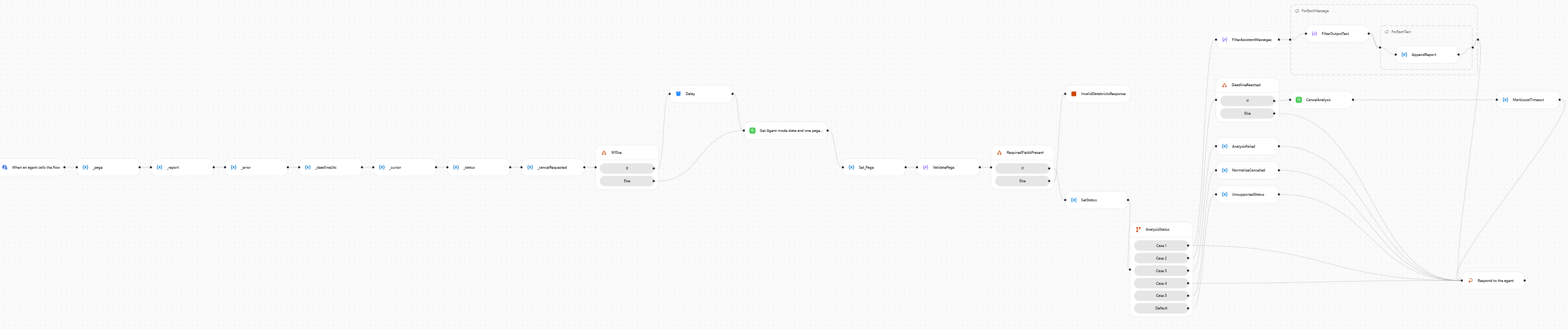
Read the canvas from left to right:
- Receive. The trigger receives the analysis identifiers and an optional pagination cursor.
- Prepare. Seven variables come first:
_page,_report,_error,_deadlineUtc,_cursor,_statusand_cancelRequested. - Separate the two jobs. A condition tells a progress check from a page read, and a Delay step on one of its paths paces the checks.
- Read. The connector action reads the analysis state and one page of items (
GetAgentModeItems). - Store and validate.
Set_Pagekeeps the complete response andValidatePagechecks it. WhenRequiredFieldsPresentfinds that the response lacks what the workflow needs, the run goes toInvalidDatabricksResponse, an explicit error step, instead of continuing. - Route the state.
SetStatusrecords the state, and theAnalysisStatusswitch sends it to its own branch. - Extract the report. For a completed analysis,
FilterAssistantMessages,ForEachMessage,FilterOutputTextandForEachTextselect the assistant's text, andAppendReportbuilds the report fragment for this page. - Handle the other outcomes.
DeadlineReachedrequests cancellation throughCancelAnalysiswhen the deadline has passed, andMarkLocalTimeoutrecords a local timeout.AnalysisFailed,NormalizeCancelledandUnsupportedStatusturn the remaining states into explicit results. - Respond. "Respond to the agent" returns the report fragment and the pagination information, or the outcome of one of the other branches.
Three properties follow from this design:
- One call reads one page. The workflow does not accumulate fragments across calls, so the agent keeps each fragment, in order.
- An empty fragment on one page does not establish an empty report. Only the last page, where
has_moreis false, ends it. - A failed request never becomes a successful empty result. Invalid responses, failed analyses and unsupported states each end in an explicit result.
The workflow works with these connector fields:
| Connector field | Use in the workflow |
|---|---|
agent_id (input) |
Your Genie Agent ID, set in the action. |
conversation_id (input) |
The analysis identifier that the agent passes in. |
response_id (input) |
The second analysis identifier, used by CancelAnalysis. |
after (input) |
The pagination cursor, used when the agent asks for a later page. |
status (output) |
The analysis state that the switch routes. |
data (output) |
The items that the filters read. |
last_id and has_more (output) |
Returned to the agent as pagination information. |
Connect the workflows to the agent
These workflow tools are separate from the native Genie MCP tool described earlier. The MCP tool is a managed connection to a Genie Agent, and these workflows call your custom connector instead. Both reach Genie, so an agent that has both gives the orchestrator two ways to answer the same question. Add the workflows without the MCP tool, or write instructions that say when each one applies.
- Publish both workflows. Only published workflows that have the trigger and a "Respond to the agent" action are listed, and the Asynchronous response toggle under Networking in that action must be off (Add a workflow as a tool to an agent).
- In Copilot Studio, select Agents, open the agent, go to Tools, select Add a tool and then Workflows. Select Genie - Start Conversation, then add Genie - Read Conversation the same way.
- Open each workflow's tab in the tools list. The Details tab shows the workflow's name, so name your workflows clearly before you add them. Write a description that says what the workflow does and when to use it.
- On the same tab, check the input parameters the agent supplies and the output parameters it receives. The connection stays with the connector actions inside each workflow, so confirm there that every action uses the connection that holds the Databricks credential.
- Add the instructions below to the agent.
A workflow tool must also respond to the agent within the action limit that Microsoft documents. That limit is one reason the consultation workflow returns after each read instead of waiting for the analysis to finish.
Suggested descriptions:
- Genie - Start Conversation: Starts one new Databricks Genie Agent mode analysis for the user's question and returns the identifiers that Genie - Read Conversation needs. Call it once per analysis. Never call it again to check progress or to retry.
- Genie - Read Conversation: Consults an analysis that has already been started. It reports the state and, when the analysis is completed, returns one page of the report with the pagination information. It never starts an analysis.
Suggested agent instructions:
You answer data questions with a Databricks Genie Agent through two workflows: "Genie - Start Conversation" and "Genie - Read Conversation".

1. Start an analysis once. Call "Genie - Start Conversation" with the user's question. Keep the identifiers it returns, and the deadline if it returns one, for the rest of the conversation about that analysis.
2. Never start a second analysis to check on the first one. If the start fails or its outcome is unknown, tell the user that the analysis may still be running and stop. Never retry the start.
3. Consult the analysis with "Genie - Read Conversation". Pass the same identifiers, and the deadline if you have one, in every call.
4. While the analysis is in progress, keep consulting it with the same identifiers. Do not message the user after every check.
5. When the analysis is completed, read the report page by page with "Genie - Read Conversation". Start at the first page. While the result says that more pages exist, call it again with the cursor it returned. Keep the fragments in the order you receive them, and never add the same page twice.
6. An empty page does not mean an empty report, and a completed analysis is not a complete report until you have read the last page. Present the report as complete only after the last page. If you could not read every page, say so and label what you present as partial.
7. If the analysis failed or was cancelled, report that outcome. If the workflow says that its deadline was reached, say that cancellation was requested, and say that the analysis was cancelled only when a later consultation confirms it.
8. Present only the report content. Never show reasoning traces, SQL call records or credentials.
The sequence below illustrates the intended order of calls. It is an example, not a recorded run.
- The user asks a question. The agent calls Genie - Start Conversation with it and receives a conversation identifier, a response identifier and the status
in_progress. - The agent calls Genie - Read Conversation with those identifiers. The analysis is still in progress, so it calls again with the same identifiers.
- A later consultation reports
completed. The agent calls Genie - Read Conversation again and receives the first page of the report with the pagination information. - The pagination information says that more pages exist, so the agent calls again with the cursor and receives the next page. It repeats this until the last page, then presents the report in order.
- If a consultation had reported a failure, a cancellation or a reached deadline, the agent would report that outcome and would not start another analysis.
Downloads
- apiDefinition.swagger.json: an OpenAPI 2.0 (Swagger) definition. It is an import file for the custom connector wizard, not a solution package. Replace the placeholder host, then import it.
- Script.csx: the C# source for the connector's custom code. Upload it on the Code step and apply it to the three operations. The definition refers to this file as
Script.cs. The download uses the.csxextension because the host of this site does not serve.csfiles, and the wizard accepts both.
The files contain no credentials. You supply your Databricks workspace host, the credential for the connection and the Genie Agent ID that the start workflow uses. No export of the workflows is provided.
Choosing an interface and keeping responsibilities clear
- Choose the interface by scope and ownership: Genie Agent MCP for one curated Genie Agent behind a managed tool, Genie One MCP for workspace-wide analytics under its own permissions, Chat mode REST for explicit control of stateful question and answer, and Agent mode REST for multi-step analysis with your own handling of start, state, pagination and cancellation.
- Decide the analytical mode separately, then confirm that the chosen interface can deliver it. Do not infer the mode from the protocol.
- Decide which layer does the multi-step reasoning and give it to one layer only. Agent mode keeps it in Genie. Chat mode, with the method in the Copilot Studio agent's instructions and skills, keeps it in Copilot Studio.
- Give each component one job. The agent handles the conversation and presents the result. Workflows coordinate state, pages, errors and cancellation. The connector defines the API operations and the secure connection. The script adapts the API format. Databricks analyzes the data.
- Test the transport in a non-production environment before building workflow logic on top of it.
- If the Power Platform environment is linked to a virtual network, check the custom code networking limit. Microsoft documents that the script's outbound requests use a public endpoint and cannot reach private endpoints on that network.
Sources
- Databricks: Genie Agent MCP server and its Azure Databricks edition
- Databricks: Genie One MCP server
- Databricks: Use Databricks data in Microsoft Copilot Studio and its Azure Databricks edition
- Microsoft Learn: Genie Agents concepts
- Microsoft Learn: Use the Genie Agents API
- Databricks API: Agent mode: Create a response
- Databricks API: Agent mode: List conversation items
- Databricks API: Conversation, including Agent mode: Cancel a response
- Databricks API: Chat mode: Start a conversation
- Microsoft Learn: Use custom code in a custom connector
- Microsoft Learn: Create a custom connector from an OpenAPI definition
- Microsoft Learn: Create a custom connector from scratch
- Microsoft Learn: Workflows overview (GitHub Copilot)
- Microsoft Learn: Edit and manage your workflow in the designer (GitHub Copilot)
- Microsoft Learn: Add a workflow as a tool to an agent (GitHub Copilot)
- Microsoft Learn: Orchestrate agent behavior with generative AI
- Microsoft Learn: Select a primary AI model for your agent
- Microsoft Learn: Skills overview for agents (GitHub Copilot)
- Microsoft Learn: Agents powered by the GitHub Copilot Harness overview
💬 Comments & Suggestions
Share your thoughts, tips, or drop a useful link below.